
An ADA-compliant website meets WCAG 2.1 Level AA standards, and your first move is to run a hybrid scan today, triage the results, and fix the highest-risk items within 72 hours.
Here is your quick-start plan:
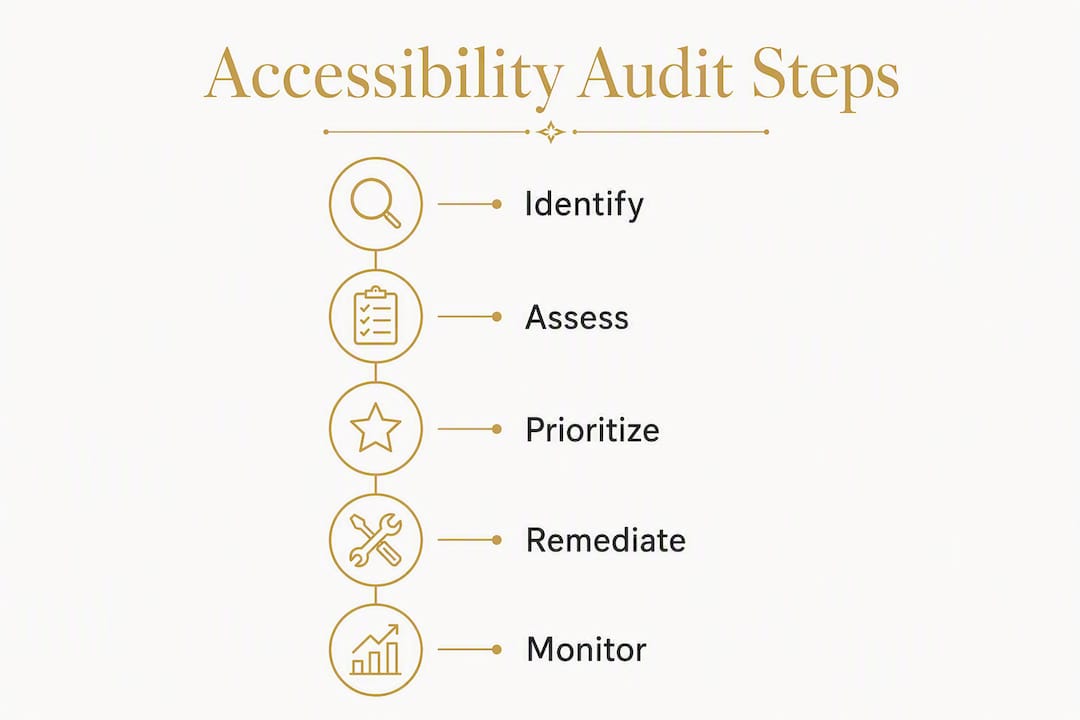
- Step 1 — Scan: Run your site through WAVE (WebAIM) or axe (Deque) right now. Both are free and flag the most common failures in minutes.
- Step 2 — Triage: Sort results by severity. Missing alt text, low color contrast, and unlabeled form fields are your highest-priority items because they affect the most users and are the easiest for plaintiffs' attorneys to document.
- Step 3 — Fix or delegate: Correct critical items yourself if your CMS allows it, or send the report to your developer with a clear priority list. If you do not have a developer, request an accessibility review before touching anything.
Pro Tip: Accessibility overlays and one-click widgets are not a fix. Sites that installed them have still faced lawsuits because the underlying HTML barriers remain. Skip the overlay and go straight to code-level remediation.
Table of Contents
- When does the ADA apply to your website?
- A practical WCAG 2.1 Level AA checklist you can use right now
- How to audit your website: a practical workflow
- Step-by-step remediation: fixing the most common accessibility issues
- How long does remediation take, and what does it cost?
- Legal exposure and what to do if you receive a demand letter
- How do you keep your site accessible after remediation?
- Why a hand-coded website reduces your long-term accessibility risk
- Key Takeaways
- Accessibility work reveals what your site is actually doing to users
- Kirk-co builds accessible websites that protect your business
- Authoritative resources and tools to use
When does the ADA apply to your website?
The Americans with Disabilities Act covers two main groups. Title II applies to state and local government entities — think city websites, public libraries, and school districts. Title III applies to businesses that are open to the public, which courts have consistently interpreted to include commercial websites. If you run a retail store, a service business, a restaurant, or any organization that serves the public, your website almost certainly falls under Title III.
There is no small-business exemption. The ADA does not carve out an exception based on company size or revenue, so a two-person contractor shop in Indiana faces the same legal exposure as a national retailer.
The technical standard to adopt:
- WCAG 2.1 Level AA is the practical legal floor. U.S. courts use it as the working benchmark in ADA website cases, and the DOJ's 2024 Title II rule explicitly requires it for government entities, signaling the federal government's preferred standard across the board.
- WCAG 2.2 Level AA is the recommended target. It is backward-compatible with WCAG 2.1, meaning content that conforms to 2.2 also conforms to 2.1. Building to 2.2 now gives you future-proofing without extra rework.
- The W3C's WCAG documentation organizes all success criteria under four principles: Perceivable, Operable, Understandable, and Robust. Those four words are a useful mental map for any audit.
"The Department of Justice has made clear that web accessibility is a civil rights obligation under the ADA. State and local governments must comply with WCAG 2.1 Level AA, with phased deadlines running through 2027–2028 for smaller entities. For private businesses, no equivalent rule has been codified — but courts consistently apply WCAG 2.1 AA as the functional benchmark." — ADA.gov, Web & Mobile Application Accessibility Rule
The practical takeaway: build and maintain your site to WCAG 2.1 AA at minimum. Aim for 2.2 AA on any new build or major redesign.

A practical WCAG 2.1 Level AA checklist you can use right now
Research shows that just six failure types account for roughly 96% of all detected WCAG errors on audited pages. Fixing those six categories removes most of your measurable exposure before you touch anything else.
Critical items (fix these first)
- Missing or empty alt text on images, icons, and linked images. Every meaningful image needs a description; decorative images need an empty
alt=""attribute. - Low color contrast between text and background. WCAG 2.1 AA requires a contrast ratio of at least 4.5:1 for normal text and 3:1 for large text. Low-contrast text was present on 83.9% of pages in one large audit snapshot.
- Unlabeled form fields. Every input, dropdown, and checkbox needs a programmatic label — not just placeholder text, which disappears when a user starts typing.
- Keyboard traps. Users who navigate by keyboard must be able to reach every interactive element and exit every modal or dropdown without a mouse.
- Missing page titles and language declarations. Each page needs a unique, descriptive
<title>tag and alangattribute on the<html>element. - Videos without captions. Any pre-recorded video with audio needs accurate closed captions. Auto-generated captions from YouTube do not meet the standard without review and correction.
High-priority items (address within two weeks)
- Logical heading structure (
<h1>through<h6>in order, not chosen for visual size). - Skip navigation links so keyboard users can bypass repetitive menus.
- Focus indicators visible on all interactive elements (buttons, links, inputs).
- Error messages that identify the specific field and explain how to fix the problem.
Medium-priority items (schedule for next sprint)
- Touch targets at least 44×44 pixels on mobile.
- Consistent navigation order across pages.
- No content that flashes more than three times per second.
What automated tools catch reliably: alt text presence, contrast ratios, missing form labels, empty links, and missing page language. These are the items WAVE, axe, and Lighthouse flag instantly.
What needs manual or user testing: keyboard navigation flow, screen-reader reading order, the quality of alt text descriptions (a tool can confirm alt text exists but cannot judge whether it is meaningful), and the usability of custom interactive components like date pickers or carousels.
How to audit your website: a practical workflow
A reliable audit combines automated scanning, manual expert review, and testing with real users. Automated tools catch the majority of detectable problems quickly, but a clean automated report does not guarantee full accessibility. Manual checks catch the navigation and interaction issues that machines miss entirely.
Step-by-step audit workflow
- Scope your pages. List every page type: homepage, service pages, contact form, checkout, blog posts, PDFs. You do not need to audit every URL — audit one representative page per template.
- Run automated scans. Use at least two tools (see the table below) to reduce false negatives. Export or screenshot the results.
- Triage the results. Group findings by WCAG criterion and severity. Flag false positives for manual verification before acting on them.
- Manual keyboard check. Navigate the entire site using only the Tab, Shift+Tab, Enter, and arrow keys. Every link, button, form field, and modal must be reachable and operable.
- Screen-reader check. Test with NVDA (Windows, free) or VoiceOver (Mac/iOS, built-in). Listen for reading order, meaningful link text, and form announcements.
- User testing. Recruit at least two to three people with disabilities — screen-reader users, keyboard-only users, or users with low vision — to complete key tasks on your site.
| Tool | Primary use | Cost | Best for |
|---|---|---|---|
| WAVE (WebAIM) | Visual overlay of errors on live pages | Free | Quick visual triage, client-friendly reports |
| axe (Deque) | Browser extension and CI/CD integration | Free core; paid DevTools | Developer workflow, regression testing |
| Lighthouse (Google) | Accessibility score + performance audit | Free (built into Chrome) | Combined performance and accessibility check |
| AccessibilityChecker.org | Automated WCAG scan with report export | Free | Fast first-pass scan, shareable PDF reports |
Sample report outline your developer or contractor can use:
- Page audited and date
- Tool(s) used
- Findings by WCAG criterion (criterion number, description, severity, affected element)
- False positives flagged (with manual verification notes)
- Recommended fix per finding
- Status (open / in progress / resolved)
Pro Tip: When a tool flags a contrast issue on a gradient or image background, verify it manually before adding it to the fix queue. Automated contrast checks on non-solid backgrounds produce false positives at a high rate. Spend two minutes confirming with a color contrast analyzer like the TPGi Colour Contrast Analyser before writing a ticket.

Step-by-step remediation: fixing the most common accessibility issues
Start with the items that carry the highest legal risk and affect the most users. The goal in the first sprint is to eliminate the six failure categories from the checklist above — those account for the bulk of detectable WCAG errors.
Prioritized fix order
- Alt text (1–2 hours for most sites). Add descriptive alt attributes to every meaningful image. A product photo of a red running shoe:
alt="Red running shoe with white sole, side view". A decorative divider:alt="". Never use the file name or "image of" as alt text. - Color contrast (2–4 hours). Adjust text and background color values to meet the 4.5:1 ratio for body text. Use the WebAIM Contrast Checker to test pairs before committing changes.
- Form labels (1–3 hours). Replace placeholder-only inputs with explicit
<label>elements tied to each field via matchingforandidattributes. Placeholder text alone fails WCAG 1.3.1. - Keyboard navigation (4–8 hours, varies by complexity). Remove
tabindex="-1"from focusable elements that should be reachable. Add visible:focusstyles in CSS. Test every modal, dropdown, and custom widget. - Video captions (time varies by video length). Add a synchronized caption file (WebVTT format) to every pre-recorded video. Review auto-generated captions for accuracy — proper nouns and technical terms are common failure points.
- Semantic HTML cleanup (4–16 hours). Replace
<div>and<span>elements used as buttons or headings with the correct HTML elements. Use ARIA roles only when no native HTML element exists for the job.
On ARIA: Use it sparingly. A <button> element is always preferable to a <div role="button">. Incorrect ARIA is worse than no ARIA because it actively misleads screen readers.
QA checklist after each fix
- Automated scan shows the criterion as resolved (no false positive)
- Keyboard navigation reaches and activates the element
- Screen reader announces the element correctly
- Fix does not break adjacent functionality or visual design
Time estimates by task category
| Task category | Estimated time | Complexity driver |
|---|---|---|
| Alt text for all images | 1–4 hours | Number of images, CMS access |
| Color contrast corrections | 2–6 hours | Number of color pairs, brand flexibility |
| Form label remediation | 1–4 hours | Number of forms, custom JS inputs |
| Keyboard and focus fixes | 4–8 hours | Custom widgets, third-party components |
| Caption and transcript creation | Time varies by video length | Video volume, accuracy requirements |
| Semantic HTML restructure | 4–16 hours | Site size, template complexity |
How long does remediation take, and what does it cost?
Timelines and costs depend on three factors: the number of page templates, the complexity of interactive components, and how much of the site relies on third-party scripts or plugins that you do not control.
| Site type | Audit duration | Remediation duration | Typical cost range |
|---|---|---|---|
| Simple brochure site (5+ pages) | 1–3 days | 1–2 weeks | — |
| Small e-commerce (15+ pages) | 3–5 days | 2–6 weeks | — |
| Medium business site (50+ pages) | 1–2 weeks | 4 weeks or more | — |
| Large web app or complex portal | 2–4 weeks | 3–6 months | — |
These ranges reflect market rates for professional accessibility audits and developer remediation in the U.S. Your actual cost will be lower if your site uses clean, semantic HTML already, and higher if it relies heavily on custom JavaScript components or a CMS with limited template control.
What drives the price up:
- High volume of unique page templates
- Custom JavaScript widgets (date pickers, carousels, accordions)
- Third-party integrations (booking systems, payment processors, embedded maps)
- PDFs and downloadable documents that need remediation separately
- Video content requiring caption creation or transcript writing
Pro Tip: Phase your remediation in sprints rather than attempting a full site overhaul at once. Fix the six critical failure categories in sprint one, then address keyboard navigation and semantic structure in sprint two. This approach reduces disruption to your live site, lets you document progress for legal protection, and spreads the cost over two or three billing cycles.
Legal exposure and what to do if you receive a demand letter
More than 5,000 digital accessibility lawsuits were filed in U.S. state and federal courts in 2025, with demand letters outnumbering filed cases by a wide margin. Most cases target businesses with obvious, easily documented failures — missing alt text, unlabeled forms, and keyboard traps are the most commonly cited violations because automated tools can capture them in a screenshot.
If you receive a demand letter, take these steps immediately:
- Notify your attorney — ADA website demand letters typically give 30–60 days to respond. Do not let that window close without legal guidance.
"In the absence of a codified DOJ rule for private businesses, courts consistently use WCAG 2.1 Level AA as the working standard. Building to that standard is the best way to reduce legal exposure." — ADA.gov accessibility standards guidance
Settlement amounts in demand-letter cases vary widely based on the severity of barriers, the plaintiff's documented harm, and how quickly the business responses. Proactive remediation before a complaint is filed is consistently the lowest-cost path.
This article provides general information about ADA web accessibility, not legal advice. Confirm your specific obligations and response strategy with a qualified attorney.
How do you keep your site accessible after remediation?
Remediation is not a one-time project. Every new page, blog post, image, or plugin update is an opportunity to introduce a new barrier. The businesses that stay out of legal trouble treat accessibility as an ongoing practice, not a checkbox.
Monitoring schedule
- Automated daily or weekly scans. Set up axe or AccessibilityChecker.org to scan your key pages on a regular schedule. Most CI/CD pipelines can run axe checks on every deployment.
- Quarterly manual reviews. Walk through the keyboard and screen-reader checks on any page template that changed since the last review.
- Annual user testing. Recruit users with disabilities once a year to complete core tasks. This catches the interaction-level issues that automated tools and expert reviewers both miss.
Content and release checklist to prevent regressions:
- Every new image uploaded gets an alt text review before publishing.
- New videos go live only after captions are added and verified.
- New form fields are tested with keyboard-only navigation before the page is published.
- Third-party plugins or embeds are evaluated for accessibility before installation.
- Developers run an axe scan on every pull request that touches the front end.
Accessibility statement essentials:
Your site should publish an accessibility statement on a dedicated page (commonly linked in the footer). A minimal statement includes:
- The standard you are targeting (WCAG 2.1 Level AA or 2.2 Level AA)
- Known limitations and your plan to address them
- A contact method for users who encounter barriers
- The date the statement was last reviewed
A short template you can adapt:
"[Business name] is committed to making its website accessible to all users. We aim to meet WCAG 2.1 Level AA standards and conduct regular accessibility reviews. If you experience a barrier, please contact us at [email/phone]. We will respond within [X] business days. This statement was last reviewed on [date]."
Why a hand-coded website reduces your long-term accessibility risk
Template-based websites and page builders introduce accessibility problems at the structural level. Bloated markup, auto-generated IDs, and JavaScript-heavy components that builders insert by default are exactly the kinds of issues that fail WCAG audits and resist easy remediation.
Kirk-co builds every website by hand, writing clean semantic HTML from the ground up. That approach matters for accessibility in concrete ways:
- Semantic structure from the start. Every heading, button, link, and form element uses the correct native HTML tag, which means screen readers work correctly without ARIA workarounds.
- Controlled JavaScript. Custom-coded interactive components are built with keyboard support and focus management built in, not patched on afterward.
- No third-party plugin dependencies. Template sites often pull in plugins that inject inaccessible markup you cannot edit. Hand-coded sites give you full control over every element.
- Performance and accessibility overlap. Faster load times, smaller DOM sizes, and efficient CSS all contribute to a better experience for users on assistive technology and slow connections alike.
Kirk-co's portfolio of live Indiana business websites includes projects like the R.A.D. Construction site, built with clean markup, fast load times, and a structure that passes automated accessibility checks without overlays or patches.
For local businesses that want to reduce accessibility risk without managing a remediation project themselves, the most practical path is a site built correctly from the start.
Pro Tip: If you are not ready for a full rebuild, ask your developer to run an axe audit on your current site and return a prioritized fix list. Even partial remediation of the six critical failure categories reduces your exposure significantly. Kirk-co can provide that audit and a clear remediation plan.
Key Takeaways
ADA-compliant websites meet WCAG 2.1 Level AA standards, and the fastest way to reduce legal exposure is to run a hybrid audit, fix the six most common failure types, and document every step.
| Point | Details |
|---|---|
| WCAG 2.1 AA is the legal floor | U.S. courts use WCAG 2.1 Level AA as the working benchmark; build to 2.2 AA for future-proofing. |
| Six failures drive most risk | Low contrast, missing alt text, unlabeled forms, keyboard traps, missing page titles, and absent captions account for roughly 96% of detected WCAG errors. |
| Hybrid audits are most reliable | Automated scanners (WAVE, axe, Lighthouse) catch machine-detectable issues; manual and user testing catch the rest. |
| Document everything | Audit reports, fix logs, and developer tickets are your best evidence if a demand letter arrives. |
| Kirk-co builds accessible from the start | Hand-coded, semantic HTML sites from Kirk-co eliminate the structural barriers that template sites introduce and are difficult to patch later. |
Accessibility work reveals what your site is actually doing to users
Most business owners I speak with think of accessibility as a compliance box to check. That framing is understandable, but it misses the more useful truth: an accessibility audit is the most honest diagnostic your website will ever get.
Screen readers and keyboard navigation expose every structural shortcut a developer took. A heading used for visual size instead of document structure. A button that only works with a mouse. A form that submits without telling the user what went wrong. These are not just accessibility failures. They are usability failures that affect every visitor, including mobile users, older adults, and anyone on a slow connection.
The businesses that treat accessibility as a UX investment rather than a legal obligation tend to fix things faster and maintain them better. They also tend to have better-performing sites overall, because the same discipline that produces accessible markup produces clean, fast, well-structured code.
What I find underestimated is the cost of waiting. A demand letter forces you into reactive mode: you are paying attorney fees, remediation costs under deadline pressure, and potentially a settlement, all at once. Proactive remediation, even phased over two or three sprints, costs a fraction of that and gives you documentation that demonstrates good faith. The math is not close.
For local businesses in Indiana, the practical answer is often a hand-coded rebuild rather than a remediation project on a template site. Patching accessibility onto a page-builder site is like repainting a house with a cracked foundation. You can make it look better, but the underlying problem is still there. Starting with clean, semantic code eliminates the structural debt before it becomes a legal liability.
Kirk-co builds accessible websites that protect your business
Local business owners in Indiana have a cleaner path to ADA compliance than most realize: a hand-coded website built to WCAG 2.1 AA standards from day one, maintained monthly so new content never introduces new barriers.
Kirk-co's custom website development service includes semantic HTML structure, keyboard-accessible components, and performance optimization built into every build, not added as an afterthought. For businesses already online, Kirk-co offers accessibility audits with a prioritized remediation plan and a clear timeline so you know exactly what needs fixing and in what order.
Ongoing website maintenance and support keeps your site current, catches new accessibility issues before they become complaints, and gives you a documented record of continuous improvement. That record matters if a demand letter ever arrives.
Ready to find out where your site stands? Request an accessibility review and get a clear, prioritized plan you can act on this week.
Authoritative resources and tools to use
Every tool and reference below is free to access. Use them in combination, not in isolation.
| Resource | Type | Best used for |
|---|---|---|
| ADA.gov Web Guidance | Official DOJ guidance | Understanding legal obligations under Title II and Title III |
| ADA.gov Title II Rule | Federal rule summary | Confirming WCAG 2.1 AA as the required government standard |
| WCAG 2.1 (W3C) | Technical standard | Full success criteria reference for audits and remediation |
| WCAG 2.2 (W3C) | Technical standard | Future-proofing new builds; backward-compatible with 2.1 |
| MDN WCAG Guide | Developer reference | Plain-English explanations of WCAG criteria for developers |
| WAVE (WebAIM) | Automated scanner | Visual overlay of errors on live pages; client-friendly |
| axe (Deque) | Automated scanner + CI | Developer workflow integration; regression testing |
| Lighthouse (Google) | Automated scanner | Combined accessibility and performance audit in Chrome |
| AccessibilityChecker.org | Automated scanner | Fast first-pass scan with exportable PDF reports |
How to use these tools together:
- Run WAVE or AccessibilityChecker.org first for a fast visual overview. These are the easiest to interpret without technical training.
- Use axe in your browser's developer tools for detailed criterion-level findings you can hand directly to a developer.
- Run Lighthouse to see how accessibility and performance interact, since both affect user experience and search visibility. The connection between web accessibility and SEO is real: semantic structure, descriptive link text, and fast load times benefit both.
- Treat any automated scan as a starting point, not a verdict. Manual keyboard testing and screen-reader checks are required to confirm that interactive elements actually work for users with disabilities.