
The fastest way to add appointment booking on your website is to embed a scheduling widget from a tool like Calendly, Setmore, Acuity Scheduling, or Google Calendar's built-in booking pages. Most owners are live within minutes on WordPress, Wix, Squarespace, Shopify, or Webflow, with no developer required. If you want a branded, fully integrated setup with client tracking baked in, a done-for-you option is worth a look. For most small service businesses, start with popular options for free tiers and easy embed, then graduate to a managed solution once your booking volume and client list start to outgrow a plug-in widget.
TL;DR:
- Most small businesses can embed a booking widget in minutes using free plans from tools like Calendly, Setmore, or Google Calendar, without needing a developer.
- Payment integration fees, SMS reminder costs, and API access vary, making it essential to review fine print before choosing a platform.
- Connecting your booking tool to Google Calendar or Outlook is critical to prevent double-bookings and reduce no-shows, especially when combined with deposits or card-on-file policies.
- Embedding options differ by platform, with inline, popup, or floating formats suitable for various website layouts, and should be tested with real bookings for reliability.
- As booking needs grow, a fully integrated solution like Kirk & Co’s custom setup, which links directly into your site design and CRM, can offer significant efficiency gains.
Table of Contents
- How Do You Compare the Best Website Booking Tools?
- How Do You Choose the Right Booking Tool for Your Business?
- How Do You Embed a Booking Widget on Your Website?
- What Integrations and Habits Reduce No-Shows?
- What Actually Matters Most When Adding Booking to Your Site?
- How Kirk & Co Builds Booking Directly Into Your Website
- Sources
How Do You Compare the Best Website Booking Tools?
Picking the right scheduling tool comes down to five practical questions: Does it have a free plan? How does the widget embed on your site? Does it sync with your calendar? Can it collect payment? And who is it actually built for?
We chose these entrants because they represent the tools small service businesses actually search for and the one done-for-you option worth knowing about. Each handles the basics of online scheduling, but the differences show up fast once you start comparing embed flexibility, payment handling, and pricing structure.
Google Calendar's appointment scheduling feature deserves attention if you already live inside Google Workspace. It syncs directly to your existing calendar and handles confirmations and reminders without asking you to learn a new tool.
Calendly earns its popularity with the widest range of embed styles and automation options, though its more advanced workflows sit behind paid tiers. Setmore stands out for small operations because its free plan includes a real embeddable widget, not just a shareable link, and it covers inline, popup, and floating embed formats right out of the box.
Acuity Scheduling makes sense once your intake process gets complicated, say, a med spa collecting waivers or a consultant gathering project details before the first call, because its intake forms and staff management tools go deeper than most competitors. Square Appointments is the obvious pick if you're already running Square for point-of-sale, since scheduling and payments live in one dashboard. SimplyBook.me and YouCanBookMe both fill narrower niches: SimplyBook.me for class-based and membership businesses, YouCanBookMe for teams juggling multiple calendars without heavy customization needs.
Here's what actually separates these tools once you're past the sign-up screen:
- Free-tier limits often cap you at one calendar or one staff member, which matters the moment you hire your first employee.
- Payment integrations vary in transaction fees, so read the fine print before assuming "supports Stripe" means free processing.
- Some platforms charge extra for SMS reminders, a detail that rarely shows up until you're mid-setup.
If you want a plug-in tool you can set up yourself this afternoon, Setmore or Calendly cover most small service businesses well. If you'd rather have someone build the booking flow into your actual site design, connect it to a CRM, and hand you something that looks custom instead of bolted on, that's where such a service fits. Kirk CRM in particular gives you a single view of every opportunity, from first inquiry through completed job, which a standalone scheduling widget simply can't replicate.
How Do You Choose the Right Booking Tool for Your Business?
Start with an honest inventory of your business before you touch a pricing page. Run through this checklist:
- How many staff members need their own calendar and availability rules? For seamless integration with popular platforms like WordPress or Elementor, check out Elementor SEO Automation resources to optimize your booking widgets on builder-driven sites.
- Do you offer multiple services with different durations, or one standard appointment type?
- Do you need to schedule resources, like equipment or rooms, alongside people?
- Will clients pay online, put down a deposit, or pay in person after the appointment?
- Do you need intake forms to collect details before the appointment happens?
- Do you need the tool to talk to a CRM, Zoom, or your email marketing platform?
- How much control do you need over the look and feel of the booking page?
When you demo a platform, push past the sales page and test the parts that break businesses later. Ask how many calendars the free or entry tier actually allows. Ask whether the platform offers an API or webhooks if you plan to connect other software down the road. Ask about refund and chargeback handling if you're collecting deposits. And ask directly what SMS reminders cost per message, since that fee structure is often buried in a support article, not the pricing page.
Watch for these red flags during a trial: no mobile app for managing bookings on the go, calendar sync that only works one direction, widgets that visibly lag when the page loads, and SMS pricing that's not disclosed until you've already signed up.
Pro Tip: Book a test appointment on any platform you're evaluating before committing. If the confirmation email, calendar invite, and reminder timing all work as expected, you've just avoided a support headache down the road.
DIY tools work well until your booking needs outgrow a plugin, multiple locations, complex staff schedules, deep branding requirements, or a need to tie bookings directly into client history and follow-up. That's the point where hiring a developer or a service like Kirk & Co starts paying for itself.
How Do You Embed a Booking Widget on Your Website?
Before you touch any code, confirm four things: you have admin access to your site, an active account with your chosen booking tool, at least one service or event type created, and your calendar connected with real availability set.
- WordPress: Add a Custom HTML block from the Gutenberg editor, paste your embed snippet, and publish.
- Squarespace: Drop a Code Block onto the page, paste the snippet, and toggle "Display Source" if the tool requires it.
- Wix: Add an Embed element from the Wix editor's Embed Code menu and paste the snippet.
- Shopify: Open the theme's HTML/Liquid source view for the target page and paste the snippet where you want the widget to render.
- Webflow: Add an Embed element to the page and paste the snippet inside it.
- Plain HTML: Paste the snippet directly into your page's markup, right where you want the widget to appear.
Adding a booking widget this way takes under five minutes on every platform above. This is fundamentally a copy-paste job, not a coding project.
Choosing embed type matters more than most people expect. Use inline embeds for a dedicated booking page, since visitors expect the full calendar visible immediately. Use a popup for a "Book Now" button in your header or on a service page. Use a floating button when you want booking accessible from every page without cluttering the layout.
Once it's live, run a real test: book a slot, confirm the calendar invite lands correctly, check that reminder timing matches what you set, then cancel the test booking so your calendar stays clean for actual clients.
What Integrations and Habits Reduce No-Shows?
Calendar sync is the single most important integration to get right. Connecting your booking tool to Google Calendar or Outlook prevents the classic double-booking disaster, where a client books online while you're simultaneously penciling in the same slot by hand. Prioritize Google and Outlook sync above every other integration on your list.
Payments deserve the same attention. Decide upfront whether you're collecting a deposit or full payment at booking, since that single choice affects your no-show rate more than almost anything else. Most platforms support Stripe or Square, and several let you generate an invoice automatically after the appointment.
Online booking itself tends to reduce no-shows and increase completed appointments compared to phone-only scheduling, largely because automated confirmations and reminders catch people before they forget.
A few habits worth building in from day one:
- Send both an email and an SMS reminder, not just one.
- Require a card on file or small deposit for services with a history of no-shows.
- Load your widget asynchronously or use a popup/floating format so it doesn't slow down your page.
- Test your booking page on a phone, not just a desktop browser, before you call it done.
What Actually Matters Most When Adding Booking to Your Site?
Most advice on this topic obsesses over feature checklists, video conferencing integrations, custom fields, recurring appointments, when the real decision point is much simpler: how much friction can your specific business tolerate between a visitor landing on your page and a confirmed appointment on your calendar?
The conventional wisdom says grab whatever has the most integrations. That's backwards for a one-person landscaping business, where a bloated feature set just means more settings to misconfigure. It's also backwards for a growing med spa with four providers, where a bare-bones free tool will crack under the weight of staff schedules and intake forms within a few months.
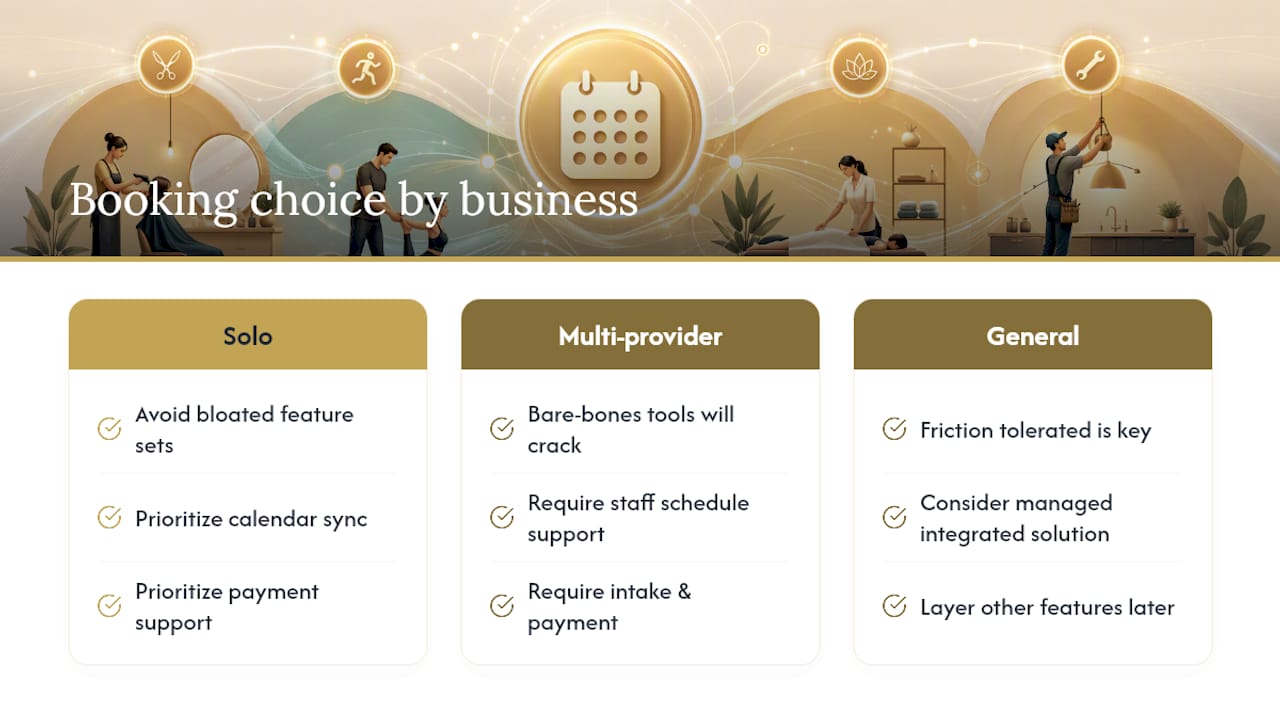
Prioritize calendar sync and payment support before anything else. Those two features prevent the two most common booking failures: double bookings and no-shows. Everything else, custom branding, SMS templates, class scheduling, is a nice-to-have you can layer on later.
Where I'd push back hardest on the standard advice: businesses wait too long to consider a managed, integrated solution. They treat CRM and branding as luxuries for later, when in practice a disconnected booking widget and a separate client spreadsheet start costing real time within a few months of steady bookings.
— Elijah
How Kirk & Co Builds Booking Directly Into Your Website
There are solid self-serve tools out there, Calendly, Setmore, Acuity, and they work fine for a lot of small operations. But if you're tired of stitching together a booking widget, a separate spreadsheet for client history, and a follow-up system that lives in your inbox, Kirk & Co takes a different approach: we build the booking flow directly into your site design and connect it to Kirk CRM, so every inquiry, appointment, and client history lives in one place instead of three.
This setup makes the most sense once your scheduling needs outgrow a plugin, multiple staff calendars, detailed intake forms, deposit collection, or a need to see which leads turned into paying jobs. Kirk CRM runs $49 a month after a free seven-day trial and gives you a single view of every opportunity from first contact to completed job, a real upgrade over toggling between a booking dashboard and a separate contact list. It's built with contractors and home service businesses in mind, the kind of work where job tracking and follow-up speed directly affect revenue.
If that sounds like where your business is headed, check Kirk CRM's pricing details or get in touch about a custom booking integration for your website.
Sources
- How to add a booking widget to your website (Hospitable help article)
- How to add a booking widget to any website (Kentroi blog)
- Setmore — booking widget documentation
- Online appointment scheduling with Google Calendar (Google Workspace resources)