
Fix a broken link preview by adding four Open Graph tags (og:title, og:type, og:image, og:url) plus twitter:card, all inside your page's <head>. Those tags go there because platforms cache what they scrape from that section the first time your link gets shared, a key step in social proof strategies to boost engagement. Use an image sized 1200×630, then confirm the result with Facebook Sharing Debugger, X Card Validator, or LinkedIn Post Inspector before you trust it.
TL;DR:
- Using the correct open graph tags with absolute URLs and appropriate sizes ensures consistent link previews across platforms like Facebook, LinkedIn, and X.
- The recommended image size for social previews is 1200 by 630 pixels, compressed under 5 MB, with explicit width and height attributes to prevent cropping issues.
- Layering Twitter-specific tags such as twitter:card improves large-image display on X, while comprehensive OG tags cover most other platforms.
- Validating and fixing broken previews requires tools like Facebook Sharing Debugger, X Card Validator, and LinkedIn Post Inspector, especially to clear caches and correct image or URL errors.
- For single-page applications, server-side rendering or pre-rendering is necessary to generate accurate social previews, as most crawlers do not execute JavaScript effectively.
Table of Contents
- What Are the Essential Social Sharing Tags?
- How Big Should Social Sharing Images Be?
- Do Different Platforms Need Different Tags?
- Adding Tags to Static Sites, Templates, and CMS Platforms
- How Do You Validate and Fix Broken Previews?
- Pre-Publish Checklist for Reliable Previews
- Making Sharing Tags Work in a Single-Page App
- Do Previews Look Different on Mobile vs. Desktop?
- When Should You Handle This Yourself vs. Bring in Help?
- Get Your Site's Previews Built Right the First Time
- Sources
What Are the Essential Social Sharing Tags?
Five tags handle nearly every preview you will ever need to fix. Each one controls a specific piece of what shows up when someone pastes your link into Facebook, Slack, or a text message.
- og:title sets the headline shown in the preview card, independent of your page's
<title>tag. - og:description supplies a short summary; keep it under roughly 155 characters so platforms do not truncate it mid-sentence.
- og:image points to the preview photo. It must be an absolute URL, not a relative path.
- og:url defines the canonical link platforms should credit, which matters if your page is reachable through multiple paths.
- og:type tells the platform what kind of content this is, usually
websiteorarticle.
These four fields, along with og:url, are the Open Graph essential tags that control how a link previews across nearly every major platform. A minimal implementation for a single article page looks like this:
<meta property="og:title" content="How to Fix Broken Link Previews" />
<meta property="og:description" content="A practical guide to Open Graph and Twitter Card tags." />
<meta property="og:image" content="https://example.com/images/preview.jpg" />
<meta property="og:url" content="https://example.com/blog/link-previews" />
<meta property="og:type" content="article" />
<meta name="twitter:card" content="summary_large_image" />
Add twitter:card whenever you want a large image preview on X instead of the small thumbnail X falls back to. Without it, X will still read your Open Graph tags, but the layout often looks cramped. If you use a photo without much surrounding text, add twitter:image:alt too. It is a genuine accessibility win for screen reader users, and it costs you one line of markup.
Skipping explicit OG tags does not mean no preview shows up. It means the platform's own heuristics choose the image and text, and those heuristics frequently grab the wrong logo, a random sidebar photo, or the first sentence of your navigation menu.
How Big Should Social Sharing Images Be?
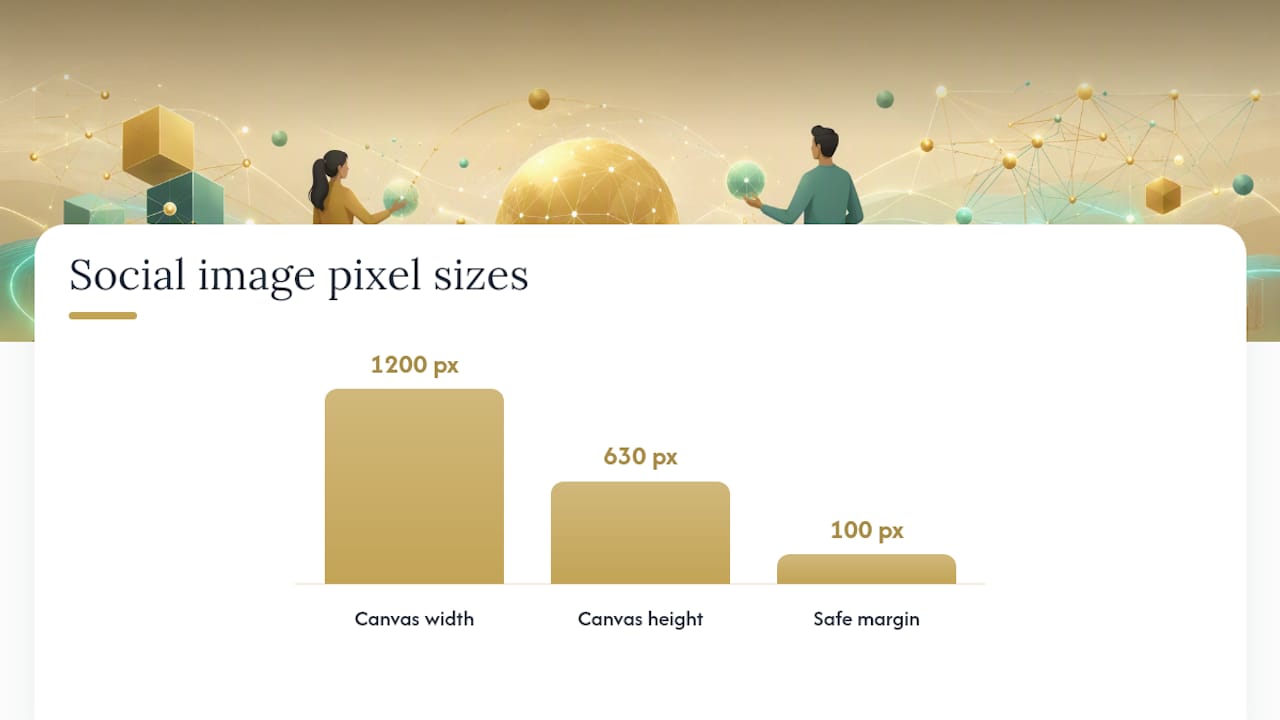
Build every image at 1200×630 pixels, a 1.91:1 aspect ratio. That size satisfies Facebook's and LinkedIn's recommended dimensions and scales down cleanly for smaller placements, which is why it has become the de facto standard rather than a platform-specific quirk.
File size matters as much as dimensions. X recommends keeping image files under roughly 5 MB to avoid rendering failures, and a bloated image slows down the initial scrape on every platform, not just X.
- Add
og:image:widthandog:image:height(and the matchingtwitter:image:width/twitter:image:height) so platforms know the aspect ratio before they finish downloading the file. - Use JPEG or WEBP for photos, PNG when you need transparency, such as a logo on a colored background.
- Compress before upload. A 4 MB source photo rarely needs to stay that large once run through basic optimization.
- Serve images from a CDN when possible; a slow origin server can cause a scraper to time out and fall back to no image at all.
Declaring width and height explicitly helps platforms preserve aspect ratio on the first scrape, which cuts down on the cropped-logo problem that plagues so many company Facebook shares.
Pro Tip: Keep your logo and any text at least 100 pixels from every edge of the 1200×630 canvas. Mobile apps crop preview images more aggressively than desktop browsers, and text sitting near the border gets clipped first.
Do Different Platforms Need Different Tags?
Open Graph is the closest thing to a universal standard here. Facebook created it, but Slack, Discord, iMessage, and most link unfurlers read it too, which is why building your foundation on OG tags covers the widest surface area with the least duplicate work.
X is the exception worth knowing well. It reads Open Graph tags as a fallback, but if you want the large-image card layout instead of a small thumbnail, you need twitter:card set to summary_large_image explicitly. LinkedIn generally respects og:title and og:image reliably but has a habit of ignoring long og:description text, so do not count on your full summary showing up there. Discord and Slack both fall back to Open Graph tags and will grab the first usable image on the page if og:image is missing.
A practical reconciliation strategy:
- Set complete Open Graph tags first, since almost every platform reads them.
- Layer
twitter:card,twitter:title, andtwitter:image:alton top for X-specific rendering. - Keep descriptions concise everywhere, since LinkedIn's truncation behavior punishes long text without warning.
Caching adds another wrinkle. Each platform caches scraped metadata on its own schedule, so an update that shows instantly on one network might sit stale on another for hours.
Adding Tags to Static Sites, Templates, and CMS Platforms
The mechanics differ by setup, but the goal stays the same: get accurate, absolute-URL metadata into every page's <head> without manual re-entry per page.
- Static HTML. Paste the tag block directly into each page's
<head>, and double check everycontentattribute uses a fullhttps://URL rather than a relative path. - Server-rendered templates. Populate
og:title,og:description, andog:imagefrom template variables tied to your content model, whether that is a database field, a headless CMS response, or front matter in a static site generator. - CMS plugins. WordPress plugins like Yoast SEO and RankMath expose dedicated social fields that override your default title and description per post; check those settings before assuming the plugin picked a sensible image automatically.
- Platform-specific admin panels. Association and membership platforms such as Novi AMS provide built-in fields for social meta tags, which is worth checking before you hand-code anything a plugin already handles.
- Multi-locale sites. Set
og:localeand make sure each language variant has its ownog:urlpointing at its own canonical page, not a shared parent URL.
Watch for two recurring failures: relative image paths that break the moment a scraper tries to resolve them, and paginated or filtered pages that inherit generic tags meant for the homepage.
How Do You Validate and Fix Broken Previews?
Three tools cover almost every debugging scenario you will run into. Facebook Sharing Debugger, X Card Validator, and LinkedIn Post Inspector each show you exactly what that platform scraped from your page, and each one lets you force a fresh scrape instead of waiting out the cache.
Run through these checks when a preview looks wrong:
- Confirm the image URL returns a 200 status and the correct content type, not a redirect or a 404.
- Check for mixed content; an
httpspage pointing to anhttpimage will get silently rejected by some scrapers. - Verify
og:urlmatches the canonical version of the page, not a tracking-parameter variant. - Re-run the debugger after every fix, since a single failed field can block the entire preview from updating.
Platforms cache preview metadata for an extended period, which explains the most common support ticket in this space: "I fixed the image, but the old one still shows up." That is almost never a code problem. It is a stale cache waiting on a forced re-scrape.
Pre-Publish Checklist for Reliable Previews
Run this sequence before any page goes live, especially on sites publishing frequently.
- Add the five essential Open Graph tags plus
twitter:card. - Confirm the image is 1200×630 and under roughly 5 MB.
- Use absolute URLs for
og:imageandog:url, never relative paths. - Set
og:urlto the canonical version of the page. - Run the page through at least one platform debugger before publishing.
- Add descriptive alt text on the preview image for accessibility.
Add a preview check to your staging pipeline if you can. A quick automated scan for missing og:image or og:title tags catches most regressions before they ever reach a live share.
Making Sharing Tags Work in a Single-Page App
Client-side rendering breaks social previews by default, because scrapers from Facebook, X, and LinkedIn generally do not execute JavaScript before reading your <head>. If your React, Vue, or Angular app injects meta tags after the page loads, most social crawlers will see an empty or generic <head> and grab nothing useful.
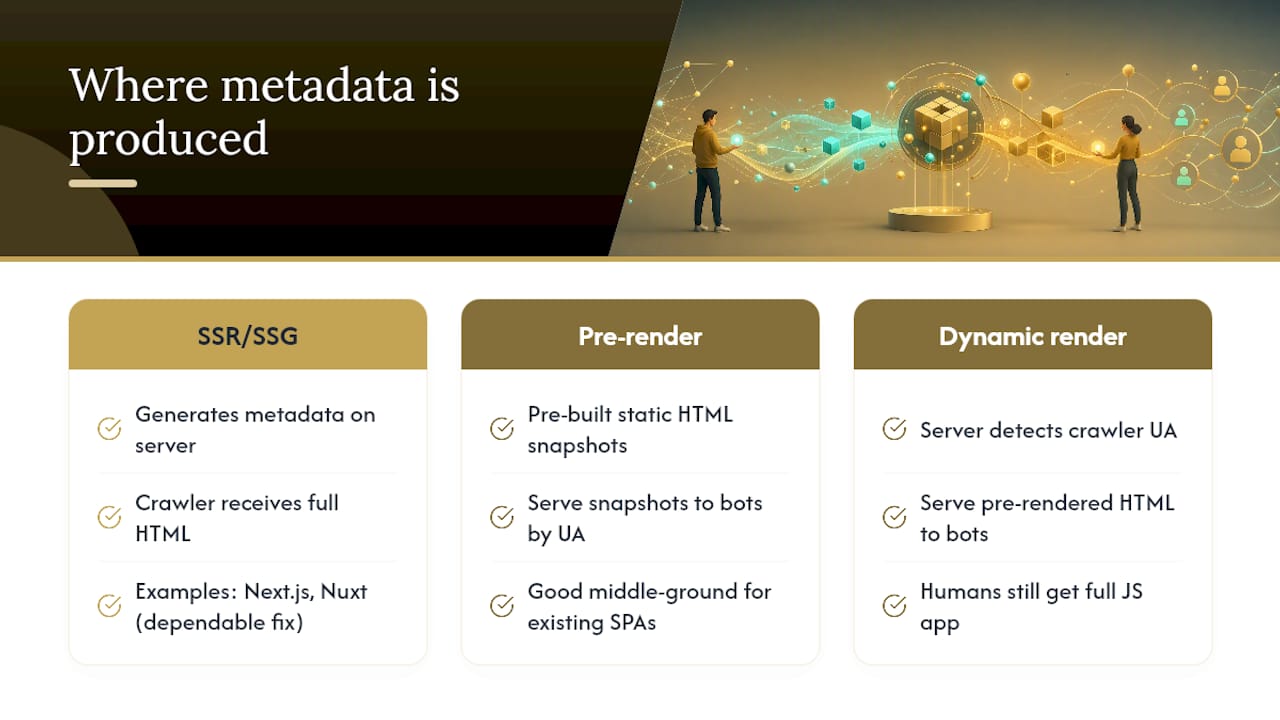
Three approaches fix this reliably. Server-side rendering (SSR) or static site generation, using frameworks like Next.js or Nuxt, renders the full <head> on the server before the crawler ever sees the page, which is the most dependable fix. Pre-rendering services generate static HTML snapshots for known routes and serve those snapshots specifically to bots based on user-agent detection, a common middle-ground solution for existing SPAs that cannot be fully rewritten. Dynamic rendering, where your server detects a social crawler's user agent and serves a pre-rendered HTML version while human visitors still get the full JavaScript app, solves the problem without a framework migration.
Whichever method you pick, test it by fetching the page with a plain HTTP request stripped of JavaScript execution, since that is closer to what a scraper actually sees than what your browser shows you. A page that looks correct in Chrome can still return a blank <head> to Facebook's scraper if the tags only exist after a client-side render completes.
Do Previews Look Different on Mobile vs. Desktop?
Yes, and the gap is bigger than most teams expect. Mobile apps for Facebook, X, and LinkedIn crop preview images more tightly than their desktop browser counterparts, which means logos or text placed near the edges of your 1200×630 image often survive on desktop but get clipped on a phone screen.
Text length behaves differently too. Desktop link previews in Facebook's feed generally show more of your og:description than the mobile app does, where vertical space is scarcer and the platform prioritizes the image. That is another reason to keep descriptions tight rather than counting on the full sentence appearing everywhere.
Messaging apps add their own variance. iMessage, WhatsApp, and Slack all generate compact previews optimized for narrow chat windows, and each handles missing twitter:image:alt or oversized images slightly differently, sometimes falling back to a generic link icon when a scrape fails silently. Testing a link by pasting it into an actual phone's messaging app, not just running it through a debugger on desktop, catches problems a validator alone will miss.
When Should You Handle This Yourself vs. Bring in Help?
A single-language WordPress site or a small marketing page is a fine DIY project. Yoast or RankMath handle the fields, and one pass through a debugger confirms the result. The math changes on larger sites: e-commerce catalogs with thousands of product variants, multi-location service businesses, or any site rendering pages client-side, where a missed edge case multiplies across every URL instead of staying contained to one page.
Tag implementation, template integration, and cross-platform validation are offered as part of full site builds; this includes work shown in the NWTAG project. The trade-off is straightforward: an hour of DIY debugging on one page versus a flat project fee that covers every page at once.
— Elijah
Get Your Site's Previews Built Right the First Time
If you run a contractor, retail, or service business in Indiana and your website was not built with social previews in mind, patching tags after the fact is slower than getting them right during a rebuild. Open Graph and Twitter Card implementation, template-level tag population, and validation across Facebook, X, and LinkedIn are included in typical custom-coded sites to avoid confusion about plugin fields.
 A 1200×628 hero image showing a clean, properly rendered link preview card.
That means no relative image paths, no missing og:url canonicals, and no oversized files getting silently rejected by X's scraper. Kirk & Co also builds out full small business web design projects for contractors, nonprofits, and retailers who want their site's technical foundation handled correctly the first time, tag implementation included. Check plans on the pricing page or browse the full portfolio to see live examples before you commit to a build.
Sources
- Open Graph meta tags
- Twitter post size guidance (Sked Social)
- The Essential Meta Tags for Social Media (CSS-Tricks)
- Advanced Social Media Sharing: Using Meta Tags (Novi AMS Help Center)