
Good navigation puts visible, simple menu structure with clear, customer-facing labels ahead of clever design. Limit your top-level items, group everything else, and make sure your primary call to action never disappears into a hamburger icon. This article gives you a prioritized checklist plus real test methods, so you can audit and fix your own site instead of just reading about it.
TL;DR:
- Limiting top-level navigation items to five to seven helps visitors focus on key pages and prevents decision fatigue.
- Keeping primary service and contact links visible on desktop improves user experience and boosts conversion potential.
- Using clear, customer-oriented labels that reflect common search terms enhances both discoverability and SEO relevance.
- Ensuring mobile touch targets are at least 44 to 48 pixels wide and supporting thumb-friendly design increases accessibility and ease of use.
- Testing navigation through quick user tests and analytics reveals discoverability issues and guides effective improvements.
Table of Contents
- Website Navigation Best Practices: The Core Checklist
- Building Mobile Navigation That Doesn't Fight the Thumb
- Accessibility and Information Architecture Alignment
- Why Menu Labels Shape Both Understanding and SEO
- Choosing Dropdowns, Mega Menus, and Sticky Headers
- Testing Whether Your Navigation Actually Works
- A Quick Navigation Audit Checklist
- A Publisher's Perspective on Navigation for Local Service Sites
- Sources
- FAQ
Website Navigation Best Practices: The Core Checklist
Most navigation problems trace back to one habit: designers add items instead of removing them. A menu that tries to represent every page on the site ends up representing none of them well. The fixes below are ordered by impact, starting with the ones that move the needle fastest for service businesses and content-heavy sites alike.
1. Cap top-level items at five to seven
Once a navigation bar passes seven items, visitors start scanning instead of reading, and every extra link dilutes the value passed to the ones that matter. Northrule's guidance on navigation structure points out that limiting top-level items to roughly five to seven concentrates internal link equity and cuts down on decision paralysis. If you're at ten or twelve items right now, pick your five or six commercial priorities and move the rest into a "More," a footer, or a submenu.
2. Keep commercial links visible on desktop, not buried in a hamburger
A hamburger icon on desktop hides the exact links that drive revenue. Visitors shouldn't have to click to discover that you offer the service they're searching for. On desktop screens, your top navigation items should be fully visible at all times. Save the collapsed icon menu for mobile, where screen space forces the trade-off.
3. Write labels in customer language, not internal jargon
"Solutions" and "What We Do" tell a visitor nothing. "Website Design" and "Local SEO" tell them everything in two words. Nielsen Norman Group's menu-design checklist treats readable, predictable labels as a baseline requirement, not a nice extra. Pull the exact phrases your customers type into Google and search bars, and use those words in your menu.
4. Show visitors exactly where they are
Active states and breadcrumbs answer two questions every visitor is silently asking: "Where am I?" and "Where can I go next?" That framing comes straight from Human Standards' navigation guidelines, and it's a useful filter for every navigation decision you make. If a visitor can't tell which section they're in without scrolling back up, your active states need work.
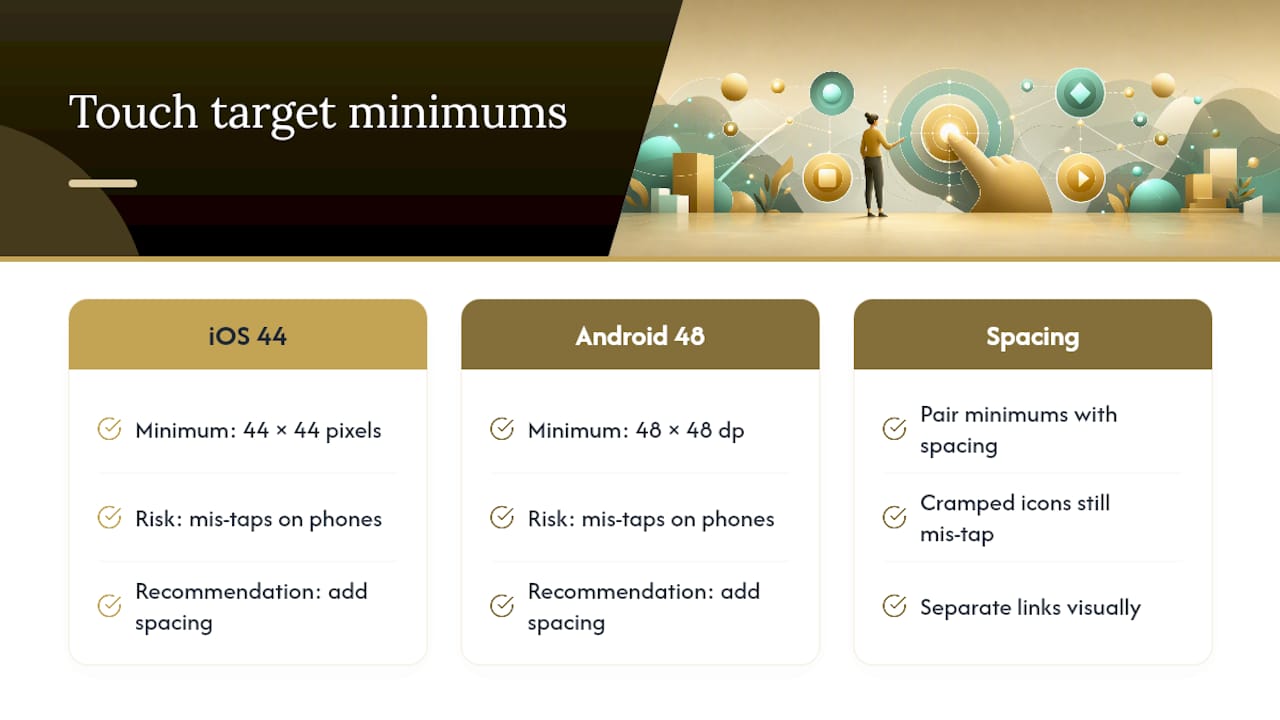
5. Build touch targets at 44 to 48 pixels minimum
Apple's iOS guidelines call for a minimum 44x44 pixel touch target, while Android's Material Design standard sets the bar at 48x48 density-independent pixels. Anything smaller invites mis-taps, especially on a phone screen where fingers are wider than cursors. Pair that minimum size with real spacing between links. A row of cramped icons is still a row of cramped icons, even at 48 pixels each.
6. Choose CSS transitions over heavy JavaScript
Dropdown menus and hover effects powered by lightweight CSS load faster and break less often than JavaScript-heavy alternatives. DreamHost's navigation design guide recommends performance-aware micro-interactions for exactly this reason. Every extra script your menu depends on is one more thing that can slow your page or fail on an older device.
7. Put your primary CTA and contact info early in the header
If someone lands on your homepage ready to call, the phone number or contact link needs to be visible in the first three seconds, not tucked at the bottom of a scroll. A well-placed CTA in the header does more for conversions than almost any other single navigation change you can make.
8. Reserve mega menus and progressive disclosure for real content volume
A mega menu makes sense when you're organizing dozens of product categories or service lines. It makes no sense for a five-page contractor site with three services and a contact form. Progressive disclosure, showing a submenu only when needed, works the same way: it's a tool for complexity, not a design trend to apply everywhere.
Pro Tip: Before adding a single new navigation item, ask whether it belongs in the top-level menu, the footer, or nowhere at all. Most sites don't have a navigation design problem. They have a "we couldn't decide what to cut" problem.
Building Mobile Navigation That Doesn't Fight the Thumb
Mobile navigation best practices come down to one constraint desktop design never has to deal with: reachability. A menu item in the top corner of a six-inch screen might as well not exist if a visitor is holding the phone one-handed.
- Hamburger menus save space but hide options behind a tap, which slows discovery on first-time visits.
- Bottom tab bars put core destinations within thumb reach and work well for apps and content-heavy sites with four or five key sections.
- Hybrid patterns pair a slim hamburger for secondary links with a visible bottom bar or sticky call button for the actions that matter most, a trade-off Human Standards covers well in its mobile navigation research.
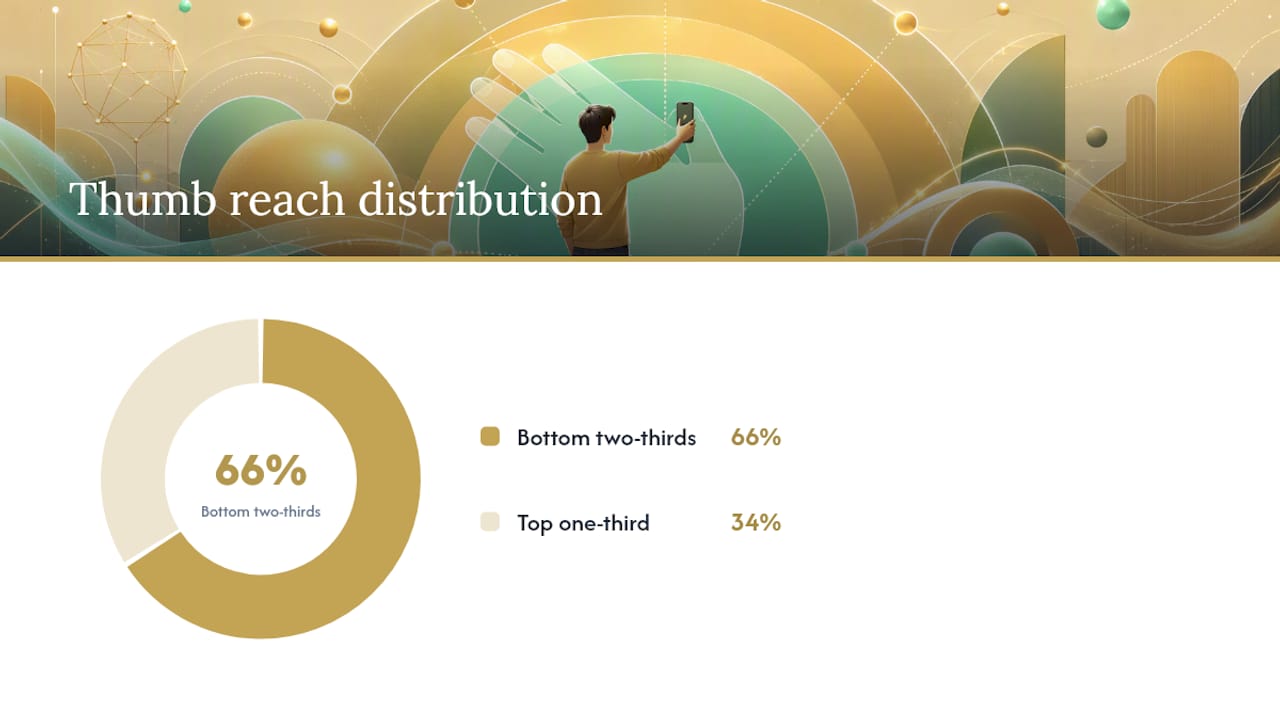
Design for the thumb zone: the bottom two-thirds of the screen is easy to reach one-handed, while the top corners require a grip shift. Keep touch targets at that same 44 to 48 pixel minimum, with real spacing so a "Call Now" tap doesn't accidentally hit "Services." Sticky elements on mobile should stay minimal, a phone icon, a cart icon, maybe one CTA, because every fixed element eats into the limited vertical space a small screen has to offer.
Pro Tip: If your site sells a service, keep a click-to-call button sticky on mobile at all times. It costs almost nothing in screen space and it's often the single highest-converting element on the page.
Accessibility and Information Architecture Alignment
Navigation that isn't operable by keyboard or screen reader isn't finished navigation, it's a visual layer that excludes a portion of your visitors before they ever reach your content. Semantic HTML does most of the heavy lifting here: proper nav, main, and footer landmarks let assistive technology understand your page structure without guesswork.
- Add a skip link so keyboard users can jump past the navigation straight to main content.
- Keep visible focus states on every interactive element, never remove the default outline without replacing it with something equally clear.
- Make dynamic menus (dropdowns, mega menus) fully keyboard operable with proper ARIA landmarks, a requirement Northrule's accessibility guidance treats as non-negotiable.
- Limit your navigational hierarchy to three levels deep. Beyond that, visitors lose track of where they are.
- Use breadcrumbs on any page more than one click from the homepage, and link every step in that breadcrumb trail, not just the current page.
Your navigation should mirror your actual site structure. If your menu says one thing and your URL structure says another, both visitors and search engines lose confidence in your architecture.
Why Menu Labels Shape Both Understanding and SEO
The words in your navigation aren't just wayfinding, they're some of the most heavily weighted internal links on your entire site. Search engines read navigation labels as strong relevance signals, which makes label wording a search foundation decision, not just a design one.
- Use the exact language your customers search with, and check that wording against your analytics and keyword data rather than guessing.
- Put your highest-priority commercial pages in the main navigation to concentrate link equity where it counts, following the same 5–7 item logic Northrule outlines.
- Skip duplicating your entire main menu in the footer. Use the footer for secondary links (privacy policy, sitemap, career pages) instead.
- Let on-page contextual links and site search surface deeper content that doesn't belong in the main menu at all.
A related detail worth knowing: the serial position effect shows that items placed first and last in a horizontal list get noticed more than items buried in the middle. If your most valuable page currently sits fourth out of seven, that alone is worth testing a change on. For a deeper look at how menu structure feeds into crawlability, Babylovegrowth's site architecture guide breaks down how search engines interpret internal linking patterns.
Choosing Dropdowns, Mega Menus, and Sticky Headers
Mega menus earn their complexity only when a catalog or service list genuinely needs it. A construction company with three services doesn't need one. An e-commerce site with 40 product categories does.
- Reserve mega menus for large catalogs, and make every item within them keyboard accessible, tab order matters as much as visual layout.
- Activate submenus on click or tap rather than hover alone. Hover-only menus fail completely on touchscreens and frustrate keyboard users.
- Signpost expandable items clearly with a chevron or arrow icon so visitors know more content is hiding underneath.
- Keep sticky headers lean on mobile, a logo, a menu icon, and one CTA is usually the ceiling before the header starts eating too much screen real estate.
- Treat micro-interactions as functional, not decorative. A transition should confirm an action happened, nothing more elaborate is needed.
Testing Whether Your Navigation Actually Works
You can't fix what you haven't measured, and navigation is one of the easiest parts of a site to test cheaply.
- Run a five-second test. Show new visitors your homepage for five seconds, then ask what the site does and where they'd click to buy or contact you. Northrule's testing framework treats this as the fastest gut check for discoverability.
- Do first-click testing. Give visitors a task ("find pricing") and watch where they click first. A wrong first click almost always predicts task failure.
- Validate structure with tree testing or card sorting before you build a single dropdown, changing labels after launch is far more expensive than changing them on a whiteboard.
- Track the right analytics. Watch navigation click-through rate, bounce rate on entry pages, on-site search usage, and conversion lift after any menu change.
- Pair the numbers with a few moderated sessions. Analytics tell you something broke; five minutes watching a real user tells you what and why.
A Quick Navigation Audit Checklist
Run through this list on any site, yours or a client's, in under ten minutes.
- Count your top-level items. Over seven? Group or cut.
- Run a five-second test on both desktop and mobile.
- Tab through the whole menu with a keyboard only, no mouse.
- Confirm visible focus states and a working skip link.
- Check touch target sizes against the 44 to 48 pixel minimum.
- Make sure your primary commercial page sits in the main nav, not three clicks deep.
| Audit Item | Target | Why It Matters |
|---|---|---|
| Top-level item count | 5–7 | Reduces decision paralysis, concentrates link equity |
| Touch target size | 44–48px minimum | Prevents mis-taps on mobile |
| Keyboard operability | Fully tabbable | Required for accessibility |
| Five-second test result | Clear task completion | Confirms discoverability |
| Primary CTA visibility | Visible without scrolling | Protects conversion path |
A Publisher's Perspective on Navigation for Local Service Sites
Every service business we work with has a page that matters more than the rest, usually "Contact" or a specific service line, and navigation is where that priority either survives or gets lost. Kirk & Co Software's hand-coded website builds are built around keeping that page one click away, not buried under a "Services" dropdown a visitor never opens. It's a small structural choice with an outsized effect on leads.
— Elijah
Sources
- Menu-Design Checklist: 17 UX Guidelines - NN/g
- Website Navigation Best Practices | Northrule
- Navigation | Human Standards
- Website Navigation Menu Best Practices: 16 Design Tips - DreamHost
FAQ
What Is the Best Practice for a Website Menu?
Keep top-level items between five and seven, use customer-facing labels, and make sure your highest-priority page is visible without a click.
What Are the Four Rules for Designing Great Navigation?
Keep it visible, keep it simple, show current location clearly, and label items in the language your visitors actually use to search.
What Is the Most Common Website Navigation Technique?
A horizontal top navigation bar paired with a collapsible hamburger menu on mobile remains the most widely used pattern across both content sites and service business websites.
How Do I Design a Website with Effective Navigation?
Start with your site's information architecture, limit main menu items to 5–7, meet the 44 to 48 pixel touch target minimum on mobile, and validate the result with a five-second test before launch.